Moser Baer has launched a USB flash drive in the form of a credit card and named it as Zap. It is a new design that would be helpful for the consumers to carry around in the pocket or in their purse along with several other debit or credit cards.

Zap has a capacity of 4 GB and it is very easy to carry. The price for which this device is quoted is Rs 1100 (INR) but you can get this USB flash drive for a price of Rs 399 on the Moser Baer website.

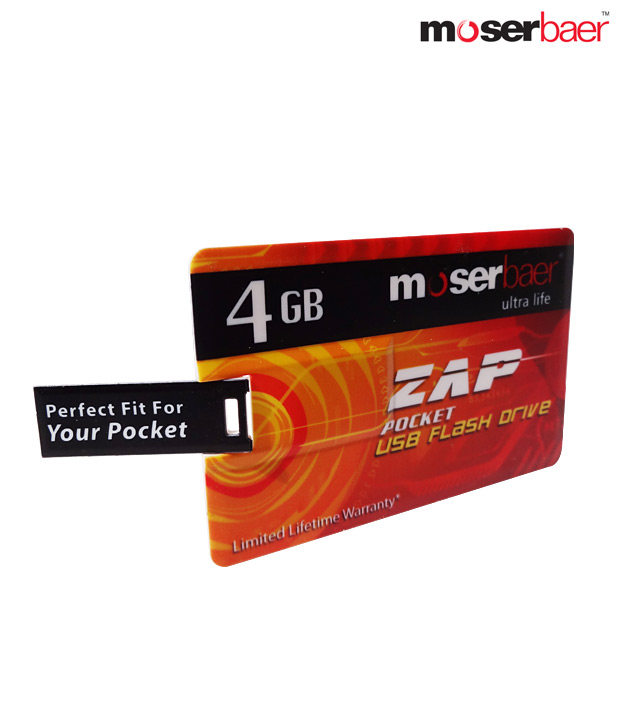
Zap has a capacity of 4 GB and it is very easy to carry. The price for which this device is quoted is Rs 1100 (INR) but you can get this USB flash drive for a price of Rs 399 on the Moser Baer website.
Specifications And Features of Zap Pocket USB Flash Drive
- Weight: 10.25gm
- Dimension: 54.15*52.83mm
- Capacity: 4 GB
- Warranty- Limited lifetime warranty of 2 years
- Interface USB 2.0
- Plug and Play
- System requirements: Windows ME/2000/XP/Vista/Mac OS 9.0 or later, Linux Kernel 2.4.2 or later, Desktop or Notebook computer with USB port.
The flash drive designed in the form of a credit card is a great design and though out product. Specifically for men, it would be very useful to carry it around all the time in their purse. You can use it whenever you want by just caring it in your wallet.
For a price of Rs 1100/- this device seems to be little expensive but you can still avail this USB flash drive for a price of Rs 399/- for a limited period from the website of Moser Baer. So, you can still try this product for a cheap price if you really want to try something new.


